Creating new device config.
Steps to update configuration: Step 1: Go to the device management section in Bytebeam cloud. Step 2: Go to the “Device Configs” section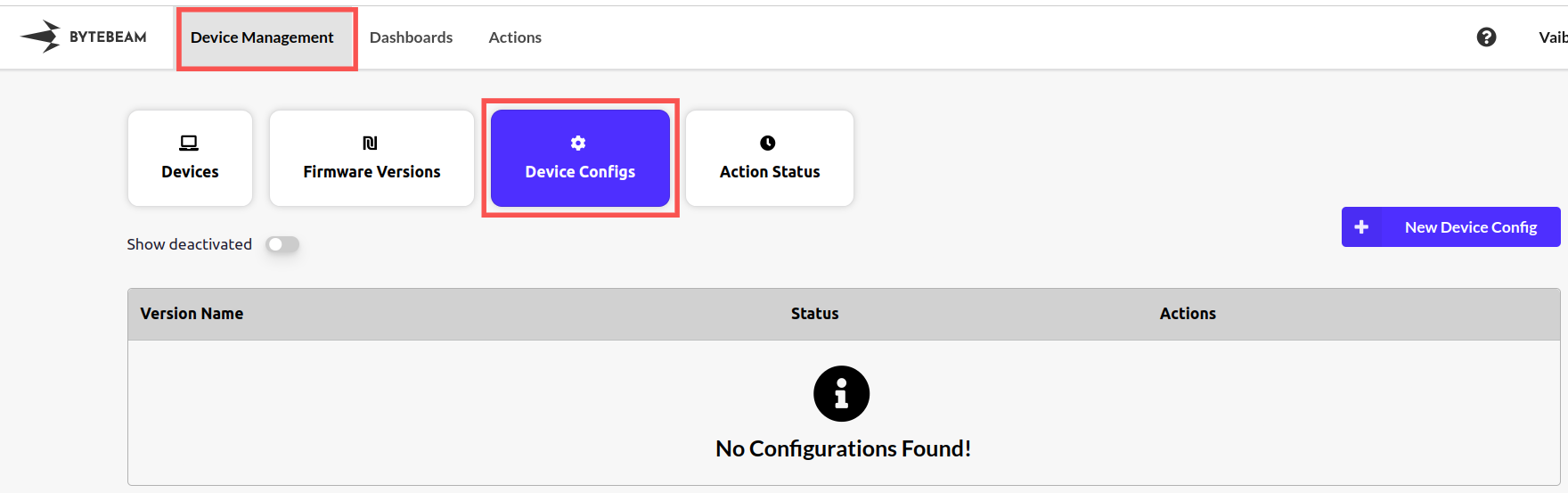
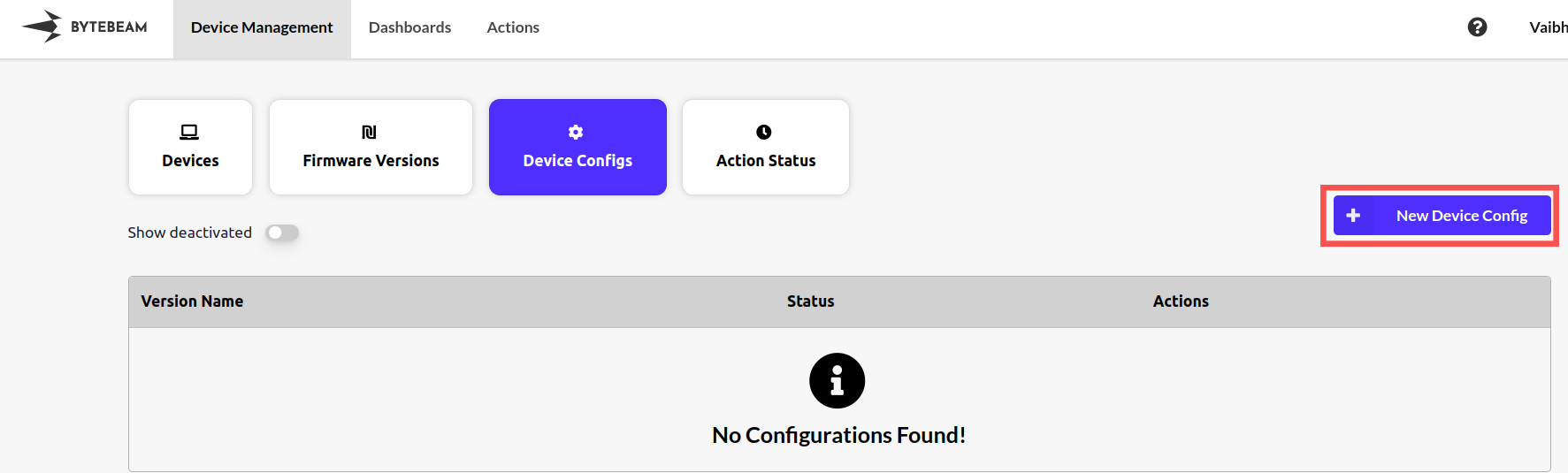
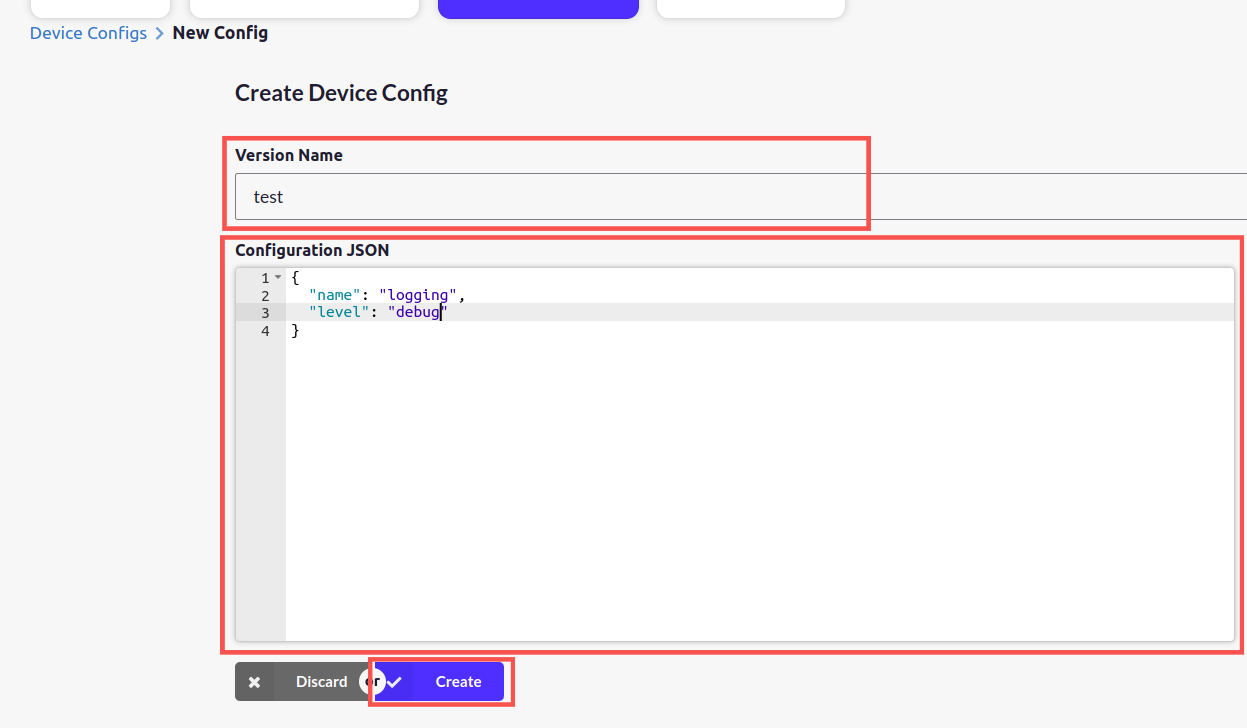
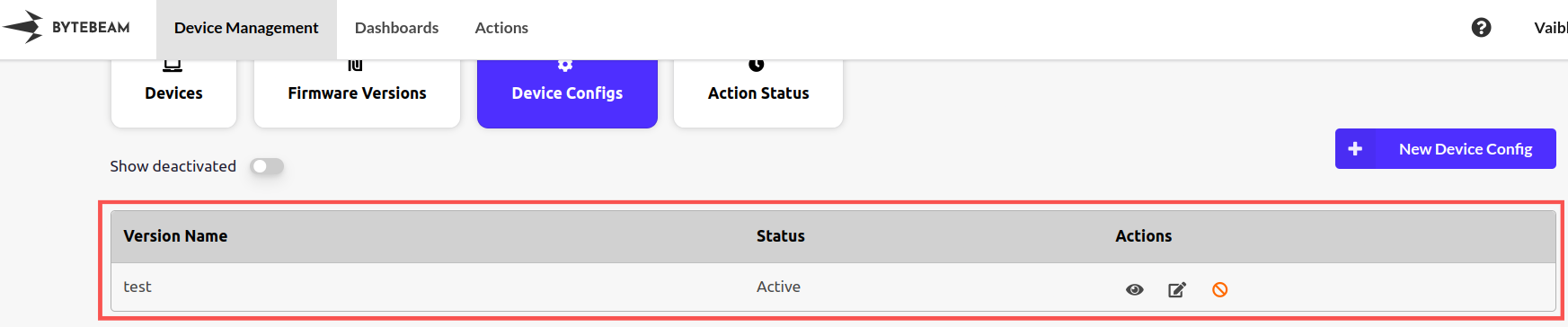
persistence_path = "/tmp/uplink"
action_redirections={update_firmware="install_firmware"}
[tcpapps.1]
port=5050
actions=[{name="reboot"}, {name="update_config"}]

[downloader]
path="/tmp/uplink/download"
actions=[{name="update_firmware", timeout=610}, {name="send_file"}]

[apis]
enabled=true
port=3333

[ota_installer]
path="/tmp/uplink/installer"
actions=[{name="install_firmware", timeout=610}]
uplink_port=5050

[logging]
tags=["sshd", "systemd"]
stream_size=1
min_level=7
sudo systemctl restart uplink
import socket
import json
import time
import threading
import logging

s = socket.socket(socket.AF_INET, socket.SOCK_STREAM)
s.connect(("localhost", 5050))


# Converts JSON data received over TCP into a python dictionary
def receive_action(s):
    return json.loads(s.recv(2048))


# Constructs a payload and sends it over TCP to uplink
def send_data(s, payload):
    send = json.dumps(payload) + "\n"
    s.sendall(bytes(send, encoding="utf-8"))


# Constructs a JSON `action_status` as a response to received action on completion
def action_complete(id):
    return {
        "stream": "action_status",
        "sequence": 0,
        "timestamp": int(time.time() * 1000000),
        "action_id": id,
        "state": "Completed",
        "progress": 100,
        "errors": [],
    }


def update_config(action):
    payload = json.loads(action["payload"])
    print(payload)
    app = payload["name"]
    print(app)
    level = payload["level"]
    if app == "logging":
        set_log_level(level)
    resp = action_complete(action["action_id"])
    print(resp)
    send_data(s, resp)


def receive_actions():
    while True:
        action = receive_action(s)
        print(action)
        if action["name"] == "update_config":
            print("update_config action received")
            print(json.loads(action["payload"]))
            update_config(action)


def set_log_level(level):
    if level.lower() == "info":
        logging.getLogger().setLevel(logging.INFO)
    elif level.lower() == "error":
        logging.getLogger().setLevel(logging.ERROR)
    elif level.lower() == "verbose":
        logging.getLogger().setLevel(logging.VERBOSE)
    elif level.lower() == "debug":
        logging.getLogger().setLevel(logging.DEBUG)


print("Starting Uplink Bridge App")
threading.Thread(target=receive_actions).start()

logging.getLogger().setLevel(logging.INFO)
logging.Formatter("%(levelname)s - %(message)s")
while True:
    time.sleep(5)
    logging.debug("This is debug")
    logging.info("This is info")
const logger = log4js.getLogger();
const net = require("net");
const log4js = require("log4js");

const client = new net.Socket();
client.connect(5050, "localhost", () => {
  console.log("Connected to server");
});

// Configure logger
log4js.configure({
  appenders: { console: { type: "console" } },
  categories: { default: { appenders: ["console"], level: "info" } },
});

// Receive JSON data over TCP
function receiveAction(socket) {
  return new Promise((resolve, reject) => {
    socket.once("data", (data) => {
      try {
        const action = JSON.parse(data.toString());
        resolve(action);
      } catch (error) {
        reject(error);
      }
    });
  });
}

// Send JSON payload over TCP
function sendData(socket, payload) {
  const send = JSON.stringify(payload) + "\n";
  socket.write(send);
}

// Construct and send action status
function actionComplete(id) {
  return {
    stream: "action_status",
    sequence: 0,
    timestamp: Date.now(),
    action_id: id,
    state: "Completed",
    progress: 100,
    errors: [],
  };
}

async function updateConfig(action) {
  const payload = JSON.parse(action.payload);
  console.log(payload);
  const app = payload.name;
  console.log(app);
  const level = payload.level;
  if (app === "logging") {
    setLogLevel(level);
  }
  const resp = actionComplete(action.action_id);
  console.log(resp);
  sendData(client, resp);
}

// Receiving actions
async function receiveActions() {
  while (true) {
    const action = await receiveAction(client);
    console.log(action);
    if (action.name === "update_config") {
      console.log("update_config action received");
      console.log(JSON.parse(action.payload));
      await updateConfig(action);
    }
  }
}

console.log("Starting Uplink Bridge App");
receiveActions();

// Log messages at intervals
setInterval(() => {
  logger.debug("This is debug");
  logger.info("This is info");
}, 5000);
use chrono::Utc;
use flexi_logger::{LevelFilter, LogSpecification, Logger};
use log::{debug, error, info};
use serde_json::json;
use std::io::{BufRead, BufReader, Write};
use std::net::TcpStream;
use std::thread;

fn receive_action(stream: &mut TcpStream) -> serde_json::Result<serde_json::Value> {
    let mut reader = BufReader::new(stream);
    let mut buffer = String::new();
    reader.read_line(&mut buffer)?;
    serde_json::from_str(&buffer)
}

fn send_data(stream: &mut TcpStream, payload: serde_json::Value) {
    let serialized = serde_json::to_string(&payload).unwrap() + "\n";
    stream.write_all(serialized.as_bytes()).unwrap();
}

fn action_complete(action_id: &str) -> serde_json::Value {
    json!({
        "stream": "action_status",
        "sequence": 0,
        "timestamp": Utc::now().timestamp_millis(),
        "action_id": action_id,
        "state": "Completed",
        "progress": 100,
        "errors": []
    })
}

fn update_config(stream: &mut TcpStream, action: &serde_json::Value) {
    let payload: serde_json::Value =
        serde_json::from_str(action["payload"].as_str().unwrap()).unwrap();
    let app = payload["name"].as_str().unwrap();
    let level = payload["level"].as_str().unwrap();
    if app == "logging" {
        set_log_level(level);
    }
    let resp = action_complete(action["action_id"].as_str().unwrap());
    send_data(stream, resp);
}

fn set_log_level(level: &str) {
    let level_filter = match level.to_lowercase().as_str() {
        "info" => LevelFilter::Info,
        "error" => LevelFilter::Error,
        "verbose" => LevelFilter::Trace, // Rust doesn't have 'verbose', using 'Trace' instead
        "debug" => LevelFilter::Debug,
        _ => LevelFilter::Info,
    };

    let log_spec = LogSpecification::default().with_default(level_filter);
    Logger::with(log_spec).start().unwrap_or_else(|e| {
        eprintln!("Failed to initialize logger: {}", e);
    });

    info!("Log level set to {}", level);
}

fn receive_actions(mut stream: TcpStream) {
    loop {
        let action = receive_action(&mut stream).unwrap();
        if action["name"] == "update_config" {
            update_config(&mut stream, &action);
        }
    }
}

fn main() {
    Logger::with_env_or_str("info").start().unwrap();
    let mut stream = TcpStream::connect("localhost:5050").unwrap();
    println!("Starting Uplink Bridge App");

    let stream_clone = stream.try_clone().unwrap();
    thread::spawn(move || {
        receive_actions(stream_clone);
    });

    loop {
        thread::sleep(std::time::Duration::from_secs(5));
        debug!("This is debug");
        info!("This is info");
        error!("This is error");
    }
}
package main

import (
    "bufio"
    "encoding/json"
    "fmt"
    "io"
    "net"
    "os"
    "time"

    log "github.com/sirupsen/logrus"
)

func main() {
    conn, err := net.Dial("tcp", "localhost:5050")
    if err != nil {
        fmt.Println("Error connecting:", err)
        os.Exit(1)
    }
    defer conn.Close()

    log.SetLevel(log.InfoLevel)
    log.SetFormatter(&log.TextFormatter{})
    log.SetOutput(os.Stdout)

    go receiveActions(conn)

    fmt.Println("Starting Uplink Bridge App")
    for {
        time.Sleep(5 * time.Second)
        log.Debug("This is debug")
        log.Info("This is info")
        log.Error("This is error")
    }
}

// receiveAction reads and decodes a JSON message from the connection.
func receiveAction(conn net.Conn) (map[string]interface{}, error) {
    reader := bufio.NewReader(conn)
    msg, err := reader.ReadString('\n')
    if err != nil {
        return nil, err
    }

    var action map[string]interface{}
    err = json.Unmarshal([]byte(msg), &action)
    return action, err
}

// sendAction encodes a payload as JSON and sends it over the connection.
func sendAction(conn net.Conn, payload map[string]interface{}) error {
    msg, err := json.Marshal(payload)
    if err != nil {
        return err
    }
    _, err = conn.Write(append(msg, '\n'))
    return err
}

// actionComplete constructs a JSON `action_status` as a response to received action on completion.
func actionComplete(id interface{}) map[string]interface{} {
    return map[string]interface{}{
        "stream":    "action_status",
        "sequence":  0,
        "timestamp": time.Now().UnixNano() / 1000,
        "action_id": id,
        "state":     "Completed",
        "progress":  100,
        "errors":    []string{},
    }
}

// updateConfig processes the update_config action.
func updateConfig(conn net.Conn, action map[string]interface{}) {
    payloadStr := action["payload"].(string)
    var payload map[string]interface{}
    json.Unmarshal([]byte(payloadStr), &payload)

    app := payload["name"].(string)
    level := payload["level"].(string)
    if app == "logging" {
        setLogLevel(level)
    }

    resp := actionComplete(action["action_id"])
    sendAction(conn, resp)
}

func setLogLevel(level string) {
    switch level {
    case "info":
        log.SetLevel(log.InfoLevel)
    case "error":
        log.SetLevel(log.ErrorLevel)
    case "verbose":
        log.SetLevel(log.TraceLevel) // Go's logrus doesn't have 'verbose', using 'Trace' instead
    case "debug":
        log.SetLevel(log.DebugLevel)
    default:
        log.SetLevel(log.InfoLevel)
    }
    log.Infof("Log level set to %s", level)
}

// recvActions handles incoming actions in a separate goroutine.
func receiveActions(conn net.Conn) {
    for {
        action, err := receiveAction(conn)
        if err != nil {
            if err == io.EOF {
                fmt.Println("Connection closed by server")
                return
            }
            fmt.Println("Error reading:", err)
            continue
        }
        fmt.Println("Action received:", action)

        if action["name"] == "update_config" {
            fmt.Println("update_config action received")
            updateConfig(conn, action)
        }
    }
}
Triggering config update
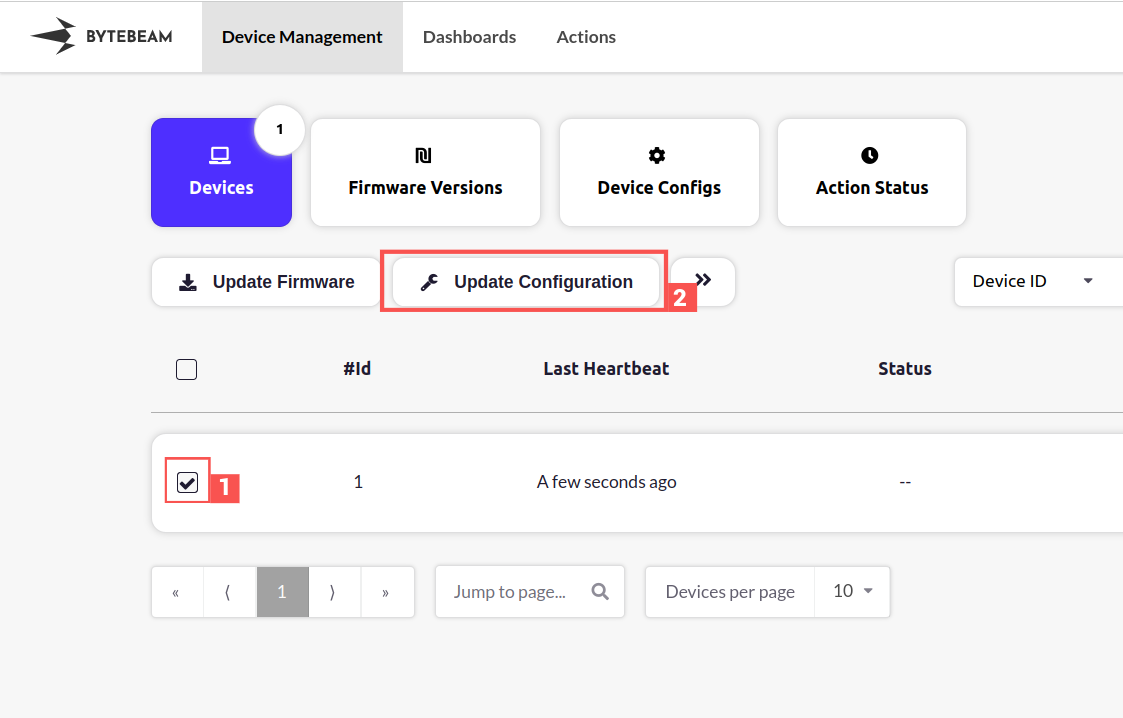
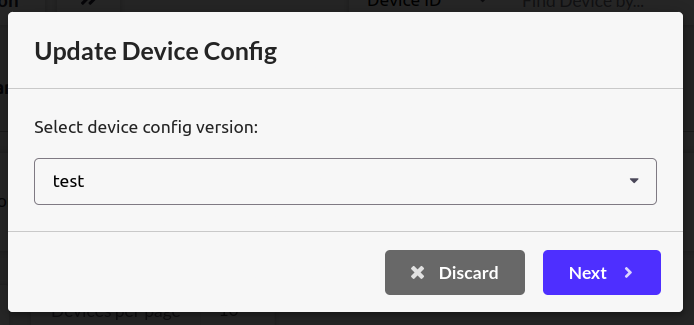
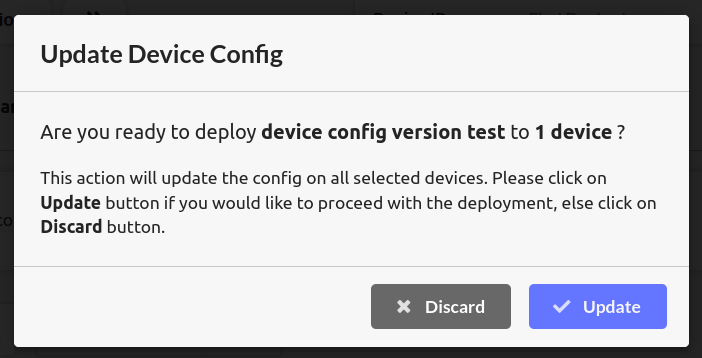
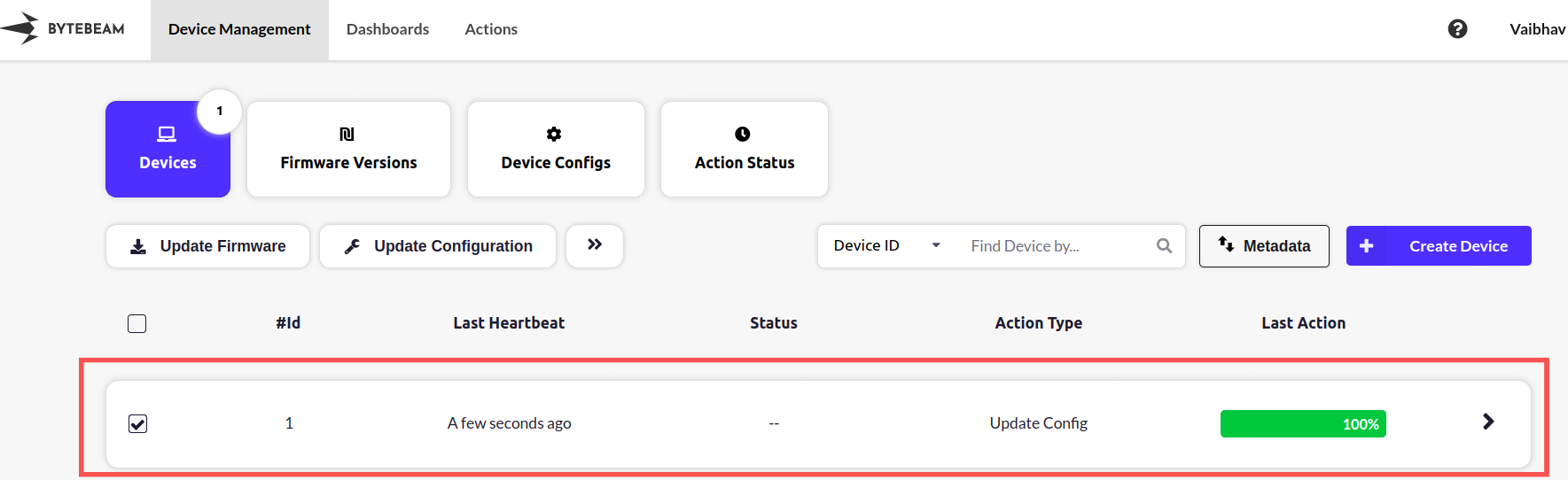
On the device management section of Bytebeam Cloud, select the device and click on Update Configuration